Your first robot will probably hit a wall. The question is whether that wall exists and whether the collision costs you money.
Getting started in robotics often feels like you need to go shopping before you’re allowed to learn anything. Motors, wheels, sensors, a controller, and seventeen tabs debating which parts you should have bought instead. You can leave the shopping cart open for now.
With Gazebo and ROS 2, you can put a virtual robot in a simulated world, send it movement commands, and watch what happens. It gives you somewhere to experiment, investigate mistakes, and try again without crawling under a table to retrieve your project.
In this guide, you’ll launch your first Gazebo world, connect a wheeled robot to ROS 2, and drive it using your keyboard. Along the way, you’ll see how a command typed in a terminal becomes movement. Virtually.
Why Simulate? (Besides Protecting Your Wallet)
A simulated robot lets you make mistakes without replacing parts. You can reset the world, change your code, and test again under similar starting conditions. That makes simulation useful for learning, but also for developing and testing robotics software.
It can save time, too. Depending on your computer and the complexity of the world, a simulation may run faster than real time. Add enough robots, cameras, and complicated physics, however, and your laptop may request a career change. The bigger advantage is having a controlled place to experiment. A buggy controller on a virtual robot gives you something to investigate. On a heavy physical robot, it can give everyone nearby something to run from.
Simulation still has limits. Real wheels slip, sensors produce imperfect measurements, and physical components rarely behave exactly like their models. But you can learn a great deal before buying your first motor.
Step 1: Install the Tools
This guide uses Ubuntu 24.04, ROS 2 Jazzy, and Gazebo Harmonic. Jazzy and Harmonic are a recommended pairing, and both are long-term-support releases. The commands below assume ROS 2 Jazzy and its package repository are already installed.
If you’re using Windows or macOS, you’ll need a suitable Ubuntu environment with working graphics support. For this walkthrough, we’ll stick to Ubuntu directly.
Open a Bash terminal and install the integration package along with the keyboard controller:
sudo apt update
sudo apt install ros-jazzy-ros-gz ros-jazzy-teleop-twist-keyboard
Then load your ROS environment:
source /opt/ros/jazzy/setup.bash
You’ll need that last command in every new terminal used in this guide. Yes, you will probably forget it once. Consider it your first ROS debugging exercise.
You can add the same line to your ~/.bashrc to load it automatically in future Bash terminals.
Step 2: Launch Your First World
With the tools installed, run:
gz sim shapes.sdf
Gazebo should open a world containing geometric shapes and a ground plane. If the simulation is paused, press the play button and let physics take over. Scroll to zoom, middle-click and drag to orbit, and explore the objects through the Entity Tree. This is your first simulation world, and nobody has asked you to solder anything.
The scene is described in an SDF file, short for Simulation Description Format. It’s an XML-based format that describes things such as models, physical properties, sensors, and lighting. Essentially: here’s an object, here’s where it belongs, and here’s how it should behave.
You’ll eventually edit these files yourself. For now, we’ll use an existing robot. Close the shapes simulation before continuing. If its terminal process is still running, stop it with Ctrl+C.
Step 3: Get a Robot With Wheels
Geometric shapes are entertaining, but they’re difficult to emotionally invest in. Let’s get something that drives.
Launch Gazebo’s differential-drive example:
gz sim -r diff_drive.sdf
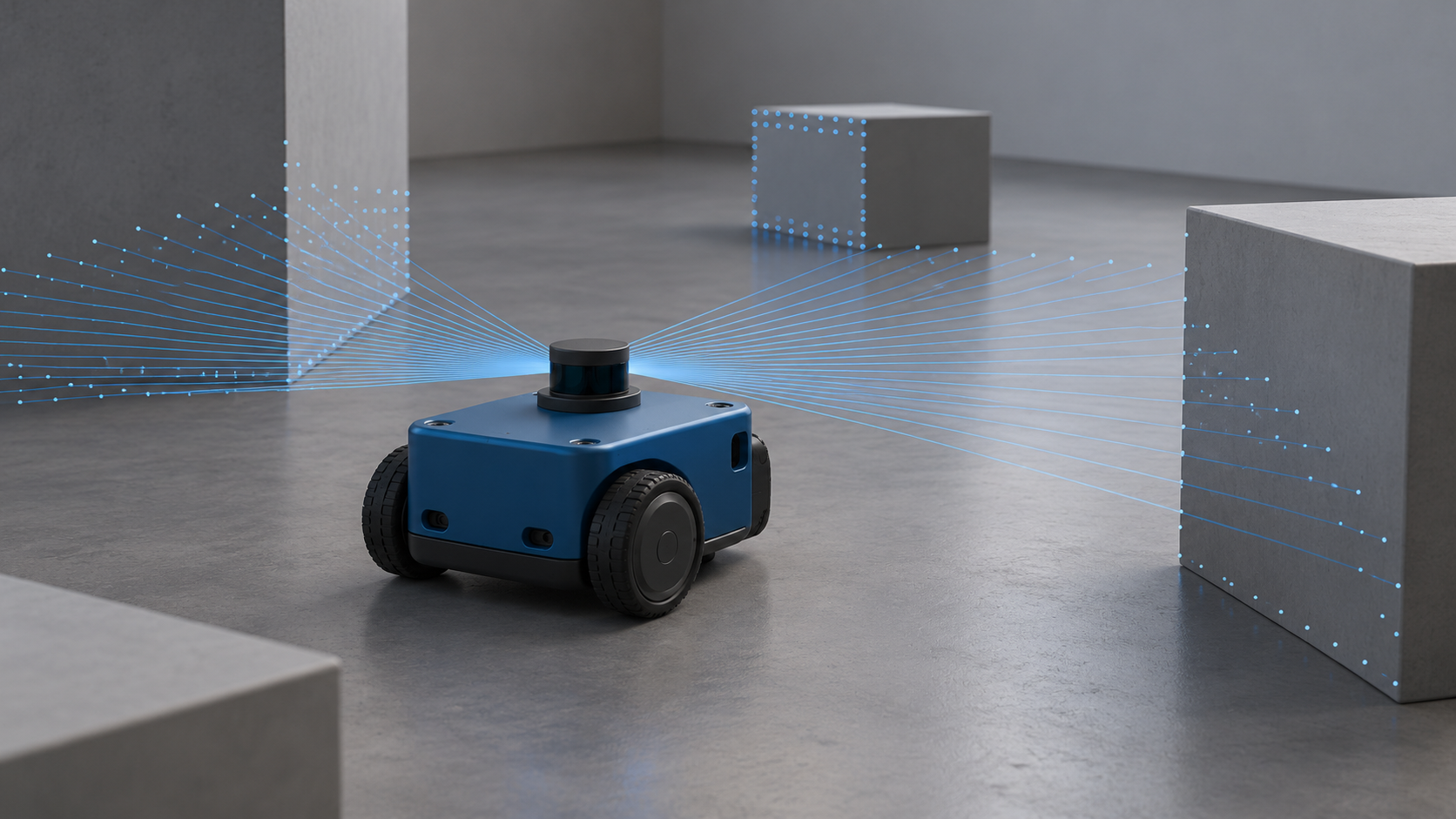
The -r option starts the simulation immediately. This example includes a blue wheeled robot named vehicle_blue, which we’ll control.
If Gazebo cannot locate the file, download the raw diff_drive.sdf file from the official Gazebo repository’s gz-sim8 branch. This branch matches Gazebo Harmonic. Save the file rather than the GitHub webpage, then launch it using its full path. If you saved it in Downloads, for example:
gz sim -r "$HOME/Downloads/diff_drive.sdf"
A differential-drive robot steers by changing the relative speeds of its left and right wheels. Move both sides forward at the same speed and it travels straight. Change their relative speeds and it turns.
The blue robot receives driving commands on a topic called /model/vehicle_blue/cmd_vel. Think of it as an inbox for movement instructions.
There’s just one problem: that inbox currently belongs to Gazebo’s communication system. We need to connect it to ROS 2.
Step 4: Introduce ROS 2 to Gazebo
Leave the simulation running and open a second terminal. Load ROS again:
source /opt/ros/jazzy/setup.bash
Now start the bridge:
ros2 run ros_gz_bridge parameter_bridge \
'/model/vehicle_blue/cmd_vel@geometry_msgs/msg/Twist]gz.msgs.Twist'
Keep this terminal running. The bridge translates messages between ROS 2 and Gazebo, allowing your ROS commands to reach the simulated robot. The command looks like something your cat submitted during a keyboard inspection, but its structure is straightforward. First comes the topic name, followed by the ROS message type, geometry_msgs/msg/Twist, and the Gazebo message type, gz.msgs.Twist.
A Twist message contains linear and angular velocity components: how fast to move and how fast to turn. The ] between the message types tells the bridge to send commands from ROS 2 into Gazebo. For the reverse direction, you would use [. Using @ between the message types creates a bidirectional bridge.
The connection is ready. Your robot finally has someone to listen to.
Step 5: Drive the Thing
Open a third terminal and load ROS:
source /opt/ros/jazzy/setup.bash
Then send your first movement command:
ros2 topic pub --once /model/vehicle_blue/cmd_vel geometry_msgs/msg/Twist \
'{linear: {x: 0.5}, angular: {z: 0.3}}'
This requests a forward velocity of 0.5 metres per second and a turning velocity of 0.3 radians per second. With the simulation and bridge running, the blue robot should move in an arc, like a shopping cart with unusually clear intentions.
One important detail: --once means publish one message. It does not mean move briefly and stop. To request a stop, send zero velocities:
ros2 topic pub --once /model/vehicle_blue/cmd_vel geometry_msgs/msg/Twist \
'{linear: {x: 0.0}, angular: {z: 0.0}}'
Typing a command for every movement gets old quickly. For keyboard control, run:
ros2 run teleop_twist_keyboard teleop_twist_keyboard \
--ros-args -r cmd_vel:=/model/vehicle_blue/cmd_vel
Keep this terminal focused while using the keys. Press i to move forward, , to move backward, j and l to turn, and k to stop. The terminal also displays additional controls for changing speed. Press Ctrl+C when you’re finished.
If nothing moves, check that Gazebo isn’t paused, the bridge is still running, and you’ve loaded ROS in the current terminal. If the keyboard controls aren’t responding, make sure you haven’t clicked away from the teleop terminal.
Take a moment to appreciate what just happened. Your keyboard controller published a ROS message, the bridge translated it, and Gazebo applied it to a simulated robot.
A physical robot can use the same kind of interface when its controller supports it. That makes higher-level software reusable, although moving to hardware still requires drivers, calibration, tuning, and testing. Your code gets a head start. Your wiring does not get a free pass.
What Happens When You Give It Eyes?
You now have a robot that moves when you tell it to. The next challenge is giving it information so it can decide how to move.
Gazebo supports simulated cameras, lidar, and IMUs. But a sensor has to exist in the robot model, with the required simulation systems configured, before ROS 2 can receive its data. A bridge translates messages; it doesn’t magically attach a lidar to the chassis.
Gazebo’s official sensor tutorial is a useful next step because it walks through adding sensors to a robot. Once a sensor is publishing data, you can bridge that data into ROS 2 and begin using it in your own code.
That opens the door to obstacle avoidance: measure the distance to an object, decide whether it’s too close, and change the robot’s velocity. A small project, but a meaningful upgrade from personally supervising every potential collision.
Later, you can explore Nav2 for autonomous navigation, alongside a SLAM system such as SLAM Toolbox for mapping. Those projects require additional setup, including sensor data, odometry, coordinate transforms, and simulation time. Get the basic pipeline working first; your robot can develop independence gradually.
The Takeaway

Here's the quiet secret of robotics: most of the hard parts, such as the logic, the perception, the planning, and the debugging, are software. Hardware is the final exam; simulation is the entire semester of practice. And you can start practicing tonight, on a laptop, for free.
So install it, launch it, and drive that little blue robot into a wall at least once. It's a rite of passage. Then do it again, but on purpose this time, and call it "collision testing."
Your future real robot will thank you…